Fetolsa Support

Get help fast.

Fetolsa can see your screen to guide you and, with your permission, fix things for you — securely, on Fetolsa's own servers.

I need help with my till → I'm on the Fetolsa team →
For venues

Getting help is one tap

1

Tap "Get Help"

In your Fetolsa POS app, tap Get Help when you're stuck. That's your only step.

2

We see your screen

A Fetolsa agent sees what you see and points at what to do.

3

We can fix it for you

If it's easier, we take over and sort it out while you watch. Stop anytime.

Nothing is shared until you ask for help. A banner shows whenever we're connected, and you can end it with one tap.
For the Fetolsa team

Setup & control guides

Pick a guide. Every step is one clear action — follow it top to bottom.

This is for Fetolsa staff who will help venues — not for customers. You only do this once on your own computer.
1

Download the support tool

Click Download for Windows (in the Downloads section). Save the file, then double-click it to open.

On the blue "Windows protected your PC" screen, click More info → Run anyway — this is normal for downloaded tools.

Screenshot A1
The downloaded installer / the "More info → Run anyway" screen.
2

Point it at Fetolsa's server

Open the tool. Click the Settings (gear) icon, then Network. Click Unlock Network Settings (accept the Windows prompt). Fill in exactly:

  • ID Serverassist.fetolsa.app
  • Relay Serverassist.fetolsa.app
  • KeyF0SDAwFLoLMRJKchS8pP832d4Rfq4EZk188WvTxklzU=

Leave API Server empty. Click Apply.
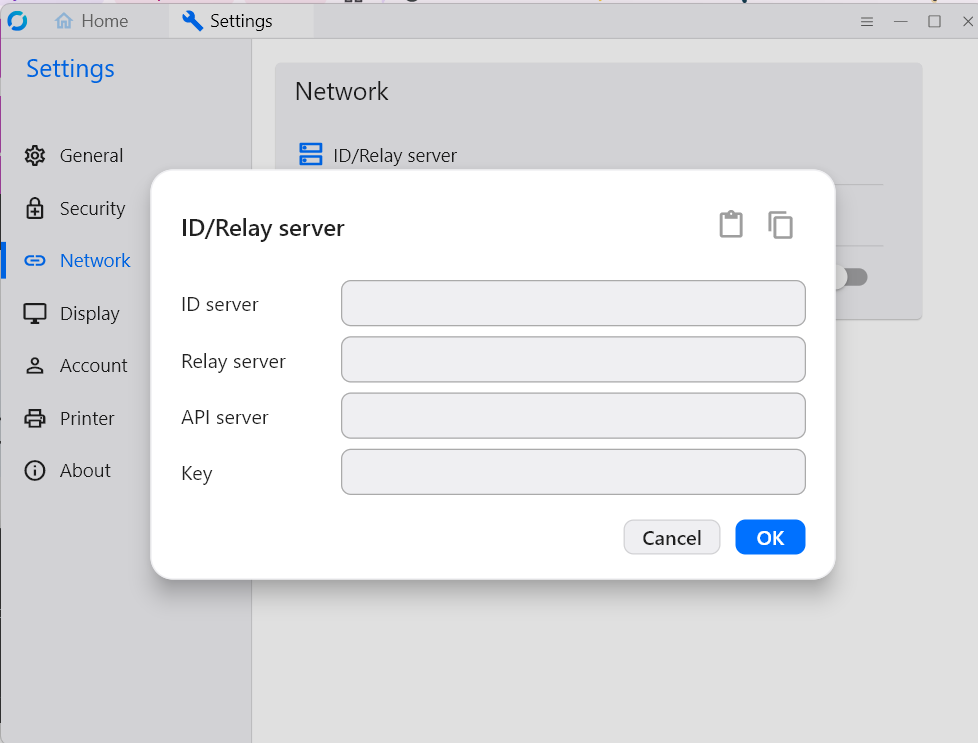
Screenshot A2
The Settings → Network screen with those three fields filled in (capture on a real machine).
3

Done

Your computer is now ready to help any till. You won't need to do this again.

Use this whenever a venue needs hands-on help and you're going to take over their till.
1

Get the till's details from HQ

In Fetolsa HQ, open Remote Support → Tills. Find the till and click Control. A box shows an ID and a Password.
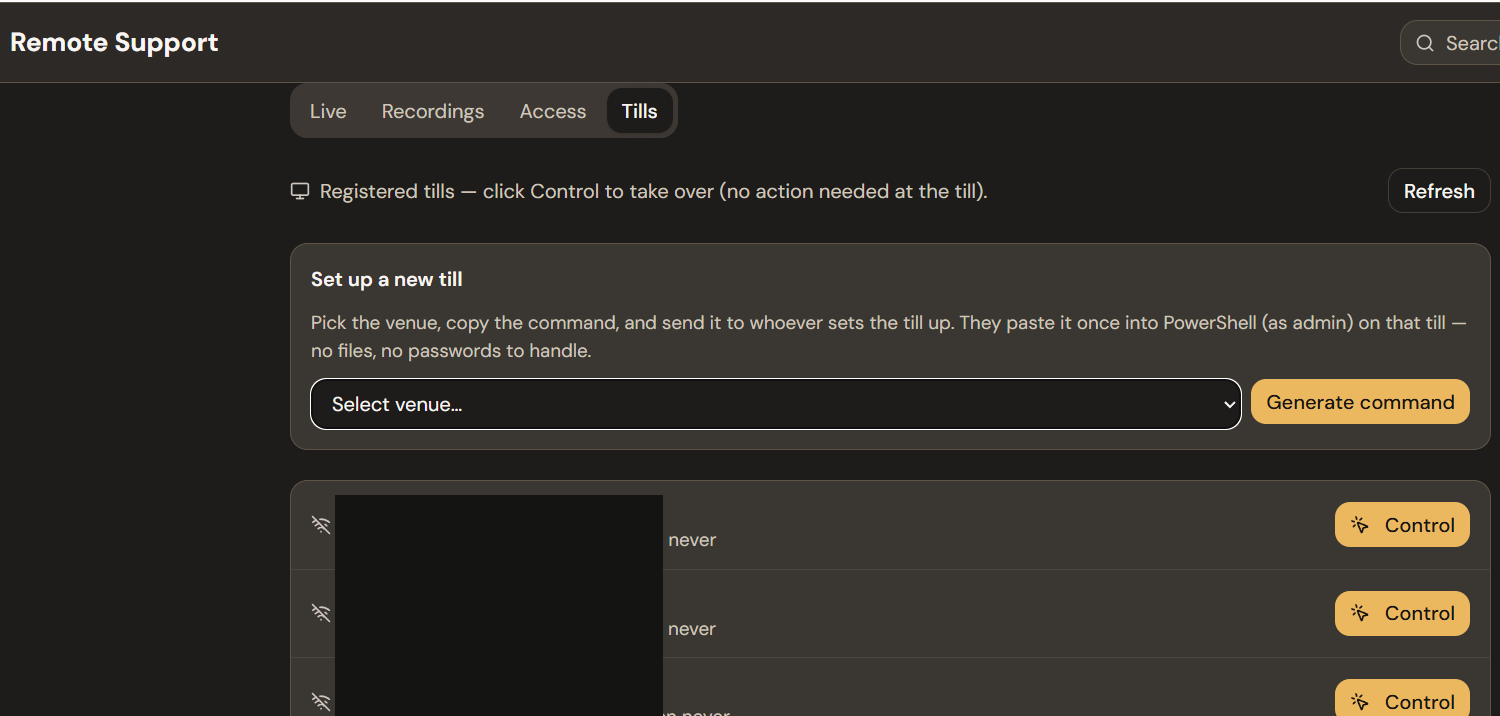
Screenshot B1
The HQ Tills tab with the Control box showing ID + Password.
2

Enter them in the support tool

On your support computer, open the tool. In the "Control Remote Desktop" box, type the ID, then click Connect. When it asks for a password, type (or paste) the Password from HQ.
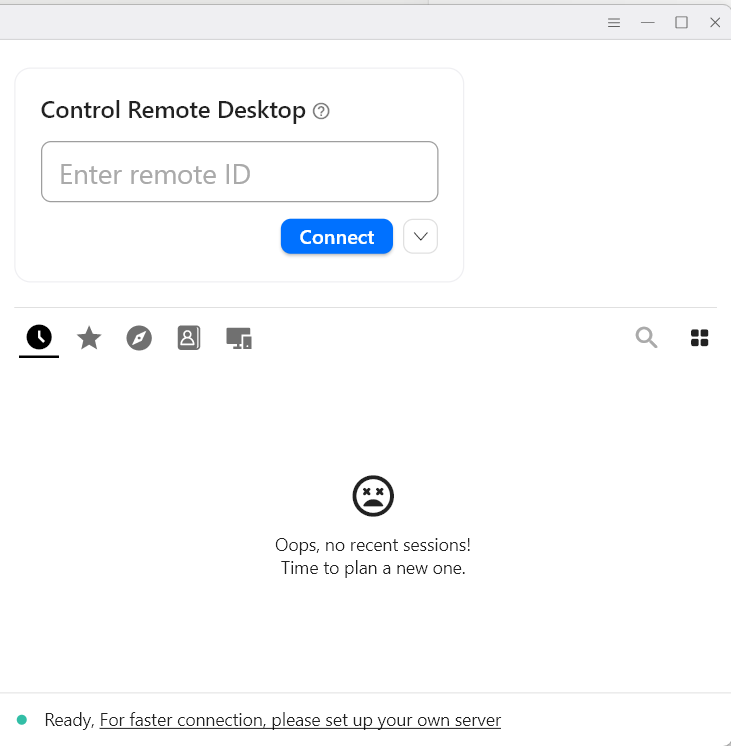
Screenshot B2
The tool's main screen with the ID typed into the Control box.
Screenshot B3
The password prompt.
3

You're in

You now see and control the till. Fix what's needed. Close the window to end.

Screenshot B4
An active control session (a till screen inside the tool's window).
Done once per till, by Fetolsa staff, when setting the till up. The cashier never does this.
1

Get the setup command

In HQ → Remote Support → Tills → "Set up a new till", pick the venue and click Generate command. Copy the one line it shows.

Screenshot C1
The HQ "Set up a new till" box with a generated command.
2

Run it on the till

On the till, right-click the Windows Start button → Windows PowerShell (Admin). Paste the command, press Enter, and type a name for the till when asked (e.g. "MILA Till 1").

Screenshot C2
PowerShell (Admin) with the command pasted.
3

Done

It installs and registers itself. You'll see a green "This computer is now set up for Fetolsa Support" message. The till now appears in HQ → Tills, ready to Control.

Screenshot C3
The green success message.
Downloads & quick reference

Get the tool & the settings

⬇ Download for Windows Latest build (direct)

This is the Fetolsa Support tool. The button links to the official download for now; ask HQ if you'd prefer a pinned Fetolsa-hosted copy (e.g. assist.fetolsa.app/dl/fetolsa-support.exe) for a faster, on-brand link.

Server settings
ID Server
assist.fetolsa.app
Relay Server
assist.fetolsa.app
Key
F0SDAwFLoLMRJKchS8pP832d4Rfq4EZk188WvTxklzU=
Privacy & consent

Your screen, your control

Fetolsa Support runs on Fetolsa's own encrypted servers — never a third party. Venues are shown a banner whenever a session is active and can end it anytime. Taking over a till unattended is only enabled with the venue owner's written agreement.